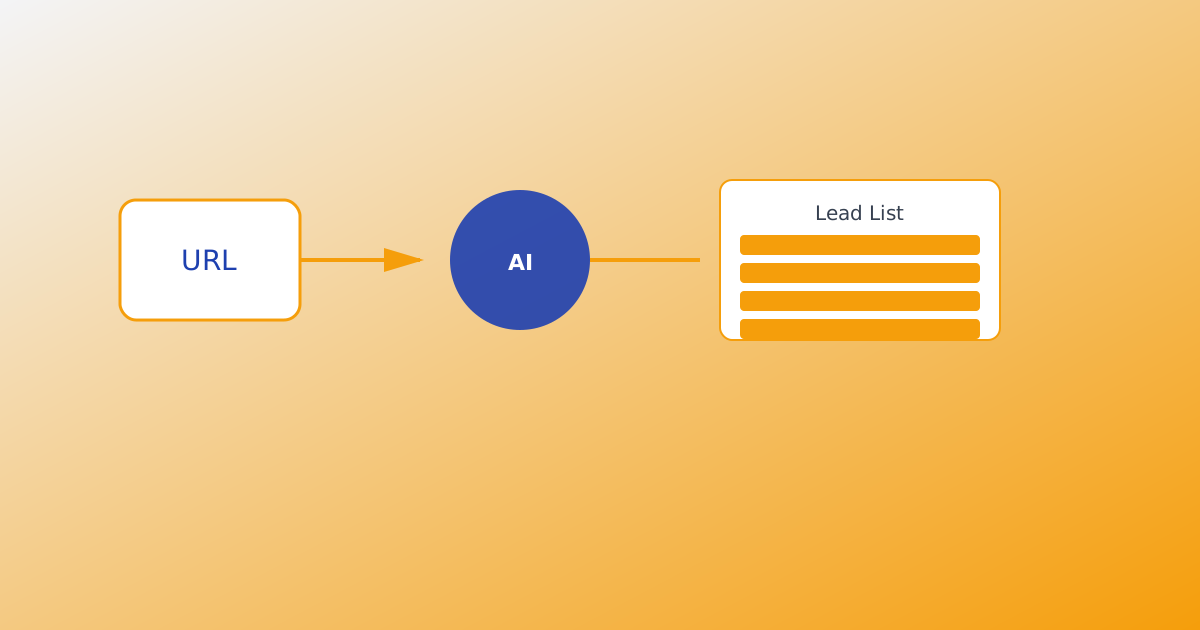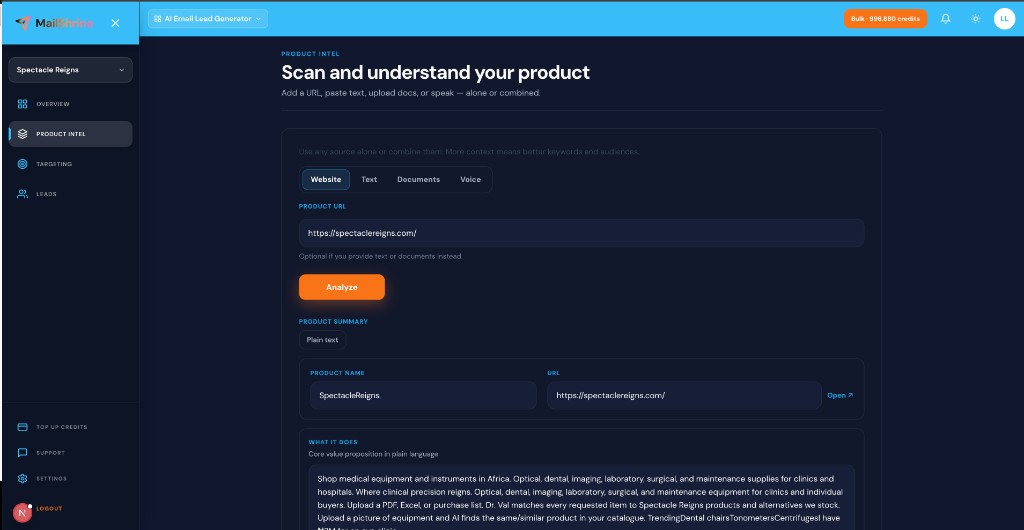
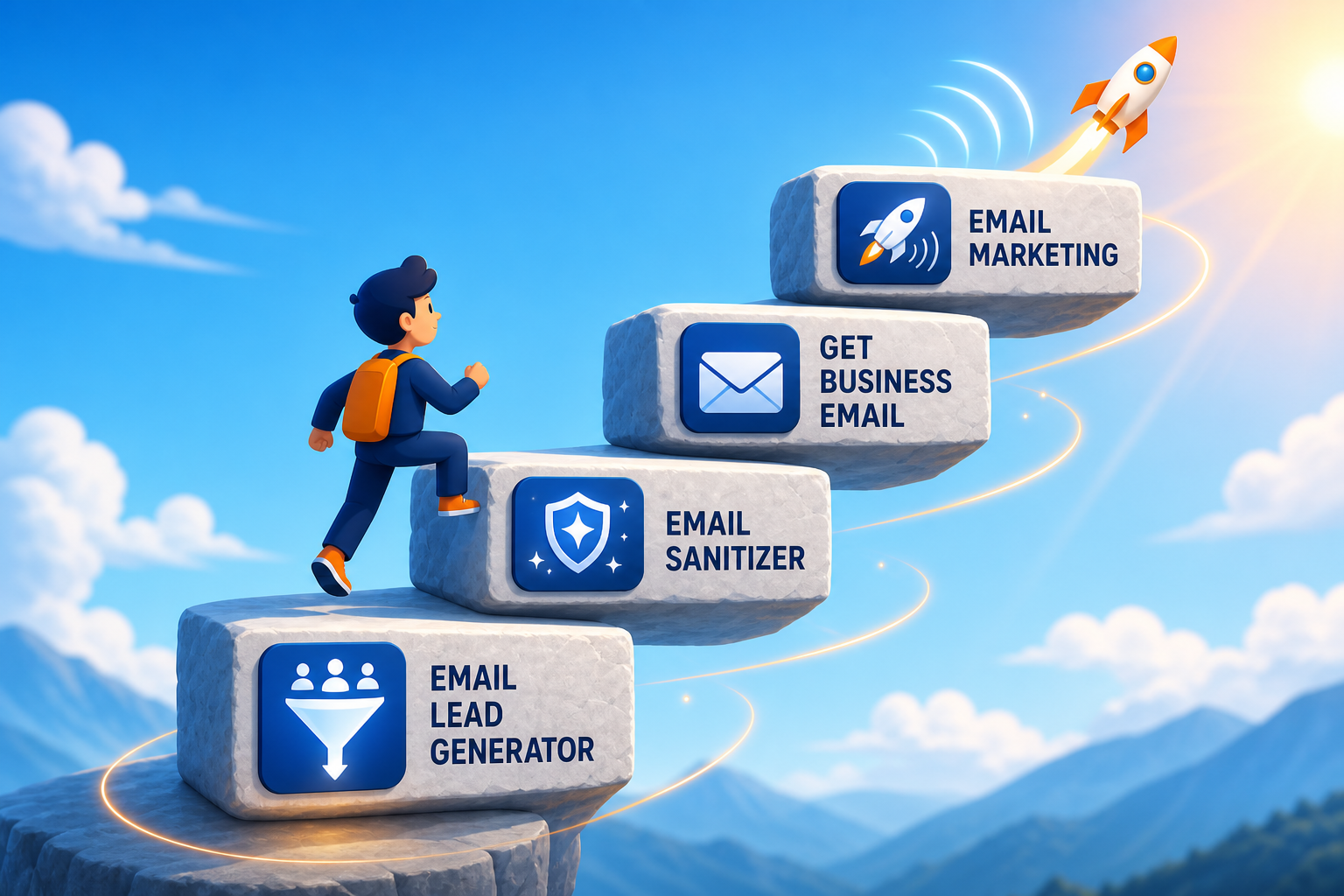
After live harvest on MailShrine AI Email Lead Generator, you export leads as CSV, Excel (.xlsx), or an email attachment when your target is met. Exports feed Email Sanitization and MailShrine Email Marketing on the same login as Business Email.
Understand harvest first: How AI Lead Generation Works. Hands-off inbox export: Email Target Delivery Explained.
Real-life example: Alder SaaS
Ben finished a 600-email harvest for his onboarding tool. He needs CSV for Email Marketing import, Excel for his co-founder to review, and a backup in his inbox from email target delivery.
Ben’s export path:
- Inbox Excel arrived at target 600.
- Dashboard CSV download for sanitize import.
- Sanitized CSV → Email Marketing campaign.
- Sent from
ben@aldersaas.comBusiness Email.
Export options compared
| Method | Format | When it arrives |
|---|---|---|
| Dashboard download | CSV | Anytime from current run or history |
| Email target inbox | CSV or Excel | When saved count hits target |
| Copy emails | Plain text | Quick tests, small batches |
| Run history re-export | CSV | Past runs without re-harvest |
All methods export the same run rows — choose format for the next tool in your stack.
What you need before you start
| Item | Why you need it |
|---|---|
| Completed or paused run | Emails saved to run history |
| MailShrine account | Sign in |
| Format decision | CSV for automation; Excel for humans |
| Sanitize plan | Raw harvest ≠ verified send-ready |
Step 1: Download CSV from dashboard
- Open active run or Run history.
- Click Download CSV.
- Store with run date in filename — e.g.
alder-harvest-2026-08-30.csv.
CSV columns include outreach contacts and context fields from your run. Open in Excel or Google Sheets to spot-check ICP fit before sanitize.
Step 2: Receive Excel or CSV via email target
If you enabled inbox delivery when setting target:
- Harvest pauses at target number.
- MailShrine emails attachment to account address.
- Choose Excel for stakeholder review; CSV for direct import.
Setup details: Email Target Delivery Explained. Agents that built the list: AI Agents for Lead Generation.
Step 3: Sanitize before Email Marketing
Raw export may include duplicates, role addresses, or risky rows:
- Import CSV to Email Sanitization (MailShrine suite).
- Run verification / cleaning rules.
- Export clean CSV.
- Import to Email Marketing for sequences.
Skipping sanitize hurts deliverability — especially after Live Harvest vs Static Lead Databases, live trails still need hygiene.
Step 4: Import to Email Marketing and send
- Open Email Marketing → Audiences or campaign import.
- Map email column; add tags for run ID or ICP segment.
- Draft sequence using Business Email sender.
- Send test to yourself; then schedule batch.
One login — no CSV re-upload across unrelated vendors.
Step 5: Re-export from run history
Need the file again?
- Open Run history.
- Select run by date and keyword set.
- Download CSV — no extra credits for re-download.
Compare runs to refine ICP — Ideal Customer Profile for Email Leads.
Ben’s finished plan (checklist)
- Inbox Excel at target 600Completed
- Dashboard CSV downloaded as backupCompleted
- Sanitized list imported to Email MarketingCompleted
- Test send from Business Email inboxCompleted
- Full sequence scheduledNot completed
Common mistakes to avoid
- Sending raw harvest CSV — always sanitize first.
- Wrong column mapping — verify email field on import.
- Mixing runs without tags — label by ICP and date.
- Ignoring inbox spam folder — whitelist MailShrine sender for target delivery.
- Re-harvesting for re-export — use run history download instead.
Check your work
- Did you download CSV and receive inbox file if enabled?
- Did sanitize complete before Email Marketing import?
- Are run date and ICP noted in filename or tags?
- Did test send succeed from Business Email?
Frequently asked questions
CSV vs Excel — which should I pick?
CSV for Email Marketing, CRM, and scripts. Excel for manual review and sharing with non-technical teammates. Inbox delivery lets you pick either.
Do re-exports cost credits?
No. Downloading an existing run from history is free — credits were spent when emails were saved.
Can I export partial runs?
Yes. Download current progress anytime. Email target delivery fires only when the full target is met.
What columns are in the export?
Contact email plus run context fields from the run. Open a sample row before mapping imports.
Next steps
- Email Target Delivery Explained — automate inbox export.
- Product URL to Lead List Workflow — from URL to export.
- What Is an AI Email Lead Generator? — category overview.
Citations & References
- Reference: Google: Email sender guidelines
- Reference: RFC 4180: CSV format
Written by Ethan W., Export & Integration Specialist. Ethan connects harvest exports to sanitize and Email Marketing on one MailShrine account.