Email target delivery lets you set how many emails a harvest run should find, then receive CSV or Excel in your inbox automatically when that goal is met — without watching the dashboard. On MailShrine AI Email Lead Generator, email target pauses harvest at the number you choose and optionally attaches your export to the MailShrine account email.
Pair this with How AI Lead Generation Works and Export Leads: CSV, Excel & Email.
Real-life example: Ridge Consulting
Patricia runs workshops for nonprofit finance teams. She starts a 500-email harvest before a client call, enables inbox delivery, and opens the Excel attachment on her phone when the target hits — while 25 AI agents kept working in the background.
Patricia’s setup:
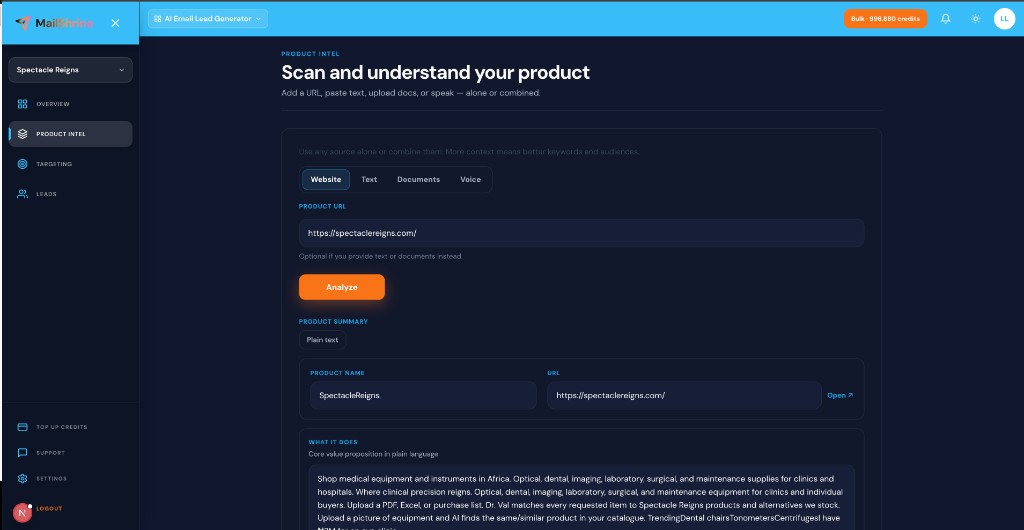
- Product intel from her workshop landing page.
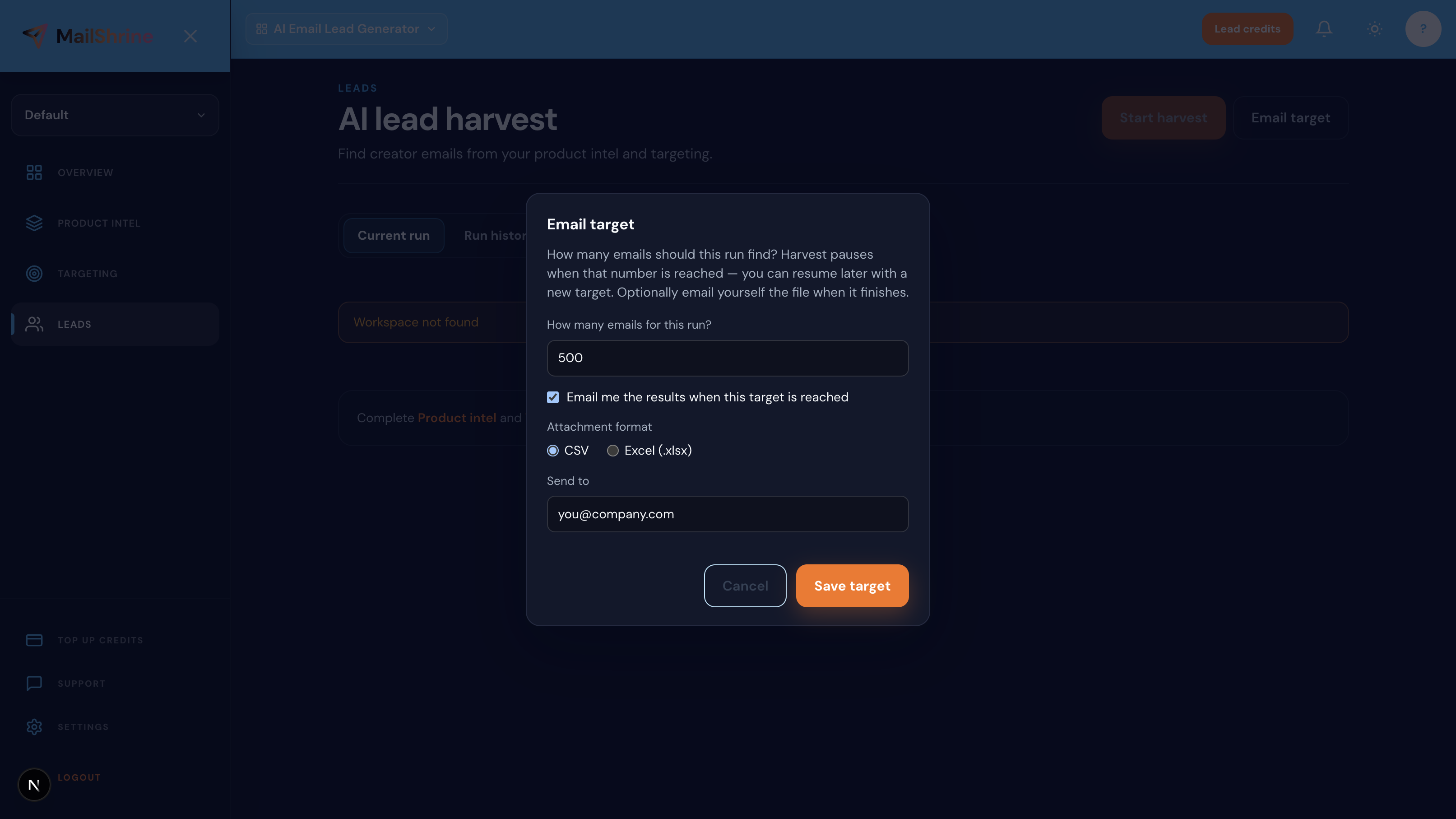
- Email target 500 + “Email me when reached.”
- Format: Excel (.xlsx).
- Import to Email Marketing after sanitize.
Email target terms in one table
| Term | Meaning |
|---|---|
| Email target | Stop harvest after N emails saved |
| Inbox delivery | Attach CSV/Excel to account email at target |
| Pause at target | Agents stop until you resume or new target |
| Dashboard export | Manual download anytime from run history |
| Credit gate | 1 credit = 1 newly saved email |
Same login as Email Marketing and Business Email.
What you need before you start
| Item | Why you need it |
|---|---|
| MailShrine account email | Inbox delivery sends to this address. |
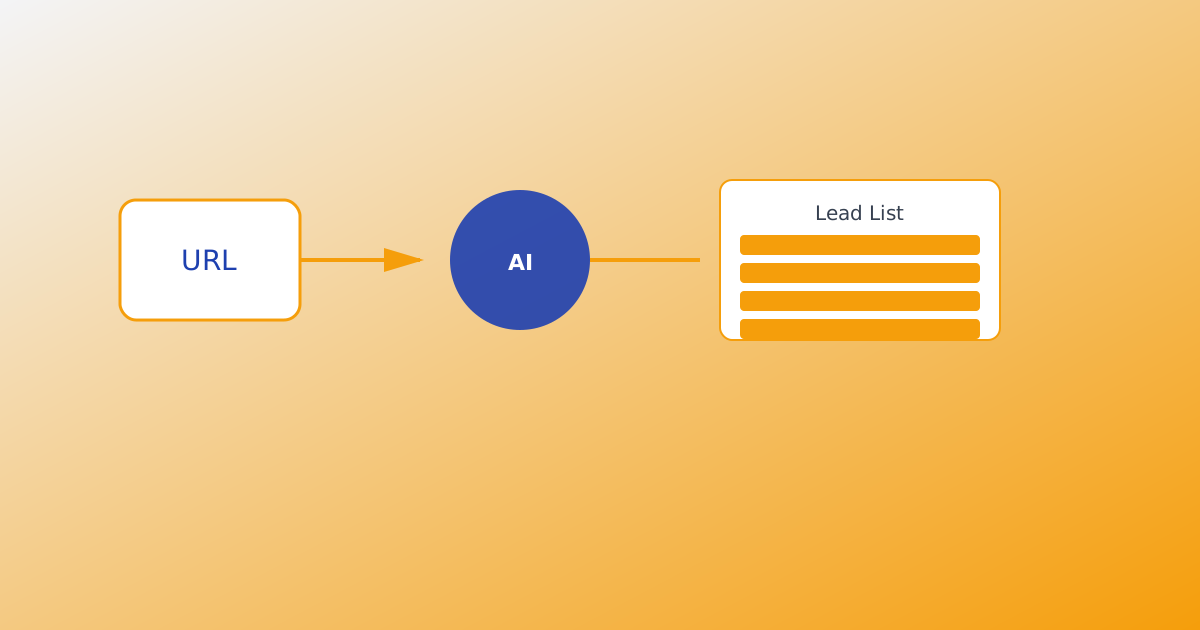
| Active harvest run | Intel + targeting configured first. Product URL to Lead List Workflow. |
| Enough credits | Target cannot complete if credits hit zero first. |
| Format choice | CSV for tools; Excel for manual review. |
Step 1: Set your email target number
Before or when starting harvest:
- Enter target — e.g. 500 emails.
- Confirm the number matches your credit budget (500 saved ≈ 500 credits max).
- Consider starting smaller (100–200) on first run to validate ICP fit.
Target is per run, not lifetime account cap. New run = new target.
Step 2: Enable inbox delivery and pick format
Toggle “Email me the results when this target is reached.”
| Format | Best for |
|---|---|
| CSV | Import to Email Marketing, CRM, or scripts |
| Excel (.xlsx) | Manual sorting, sharing with non-technical teammates |
Attachment includes harvested rows from that run. Filename reflects run metadata — open and spot-check before bulk send.
Step 3: Start harvest and walk away
Click Start harvest. 25 named AI agents run in parallel on live trails. You can:
- Close the tab — harvest continues server-side until pause conditions.
- Monitor agent status if you stay on dashboard.
- Pause manually for meetings or credit checks.
When saved count hits target → harvest pauses → inbox email sends (if enabled). Details on agents: AI Agents for Lead Generation.
Step 4: Resume, retarget, or start fresh
After target pause:
| Action | When |
|---|---|
| Download from history | Need file again without re-harvest |
| Set new target + resume | Continue same run with higher cap |
| New run | Different keywords or intel |
Credits pause at zero — top up and resume without losing run history.
Step 5: Sanitize and send from the suite
Inbox delivery is not a substitute for list hygiene:
- Open CSV/Excel attachment.
- Run Email Sanitization.
- Import to MailShrine Email Marketing.
- Send from Business Email.
Live harvest freshness: Live Harvest vs Static Lead Databases.
Patricia’s finished plan (checklist)
- Email target 500 with Excel inbox deliveryCompleted
- Harvest started before client callCompleted
- Attachment received — 500 rowsCompleted
- List sanitizedCompleted
- Workshop invite sequence scheduled in Email MarketingNot completed
Common mistakes to avoid
- Target higher than credits — run pauses at zero, not at target.
- Wrong account email — verify MailShrine profile email receives attachments.
- Skipping sanitize — inbox file is raw harvest, not verified send-ready.
- No target set — run continues until manual stop.
- Expecting instant delivery — agents need time to reach target.
Check your work
- Is email target number entered before start?
- Is inbox delivery toggled with correct CSV vs Excel?
- Does your credit balance cover the target?
- Do you know harvest pauses automatically at target?
Frequently asked questions
Does inbox delivery cost extra credits?
No extra fee — same credits as saved emails in the run. Delivery is a convenience feature.
Can I get both dashboard download and inbox email?
Yes. Inbox fires at target; dashboard export remains in run history anytime.
What if target is never reached?
Harvest runs until you pause, credits exhaust, or you stop manually. Lower target or broaden keywords.
Which email address receives the file?
The email on your MailShrine account. Update profile if you need a different inbox.
Next steps
- Export Leads: CSV, Excel & Email — formats and suite import.
- Product URL to Lead List Workflow — configure intel before target.
- How AI Lead Generation Works — full pipeline.
Citations & References
- Reference: Google: Email sender guidelines
- Reference: CAN-SPAM Act compliance basics
Written by Maya L., Deliverability & Outreach Ops Lead. Maya designs hands-off export workflows so founders stop babysitting harvest dashboards.